https://webappts.net/PatientPortal/ ...
The ellipses represent your provider's information (this is the unique identifying information of the provider).
- New patients create this during registration.
- Existing patients are provided a User Name, which they can change once they have logged in to the Portal.
- New patients create this during registration.
- Existing patients are provided a Password that they can change once they have logged in to the Portal.
Your password is case sensitive: e.g., MyPassword is not equivalent to mypassword.
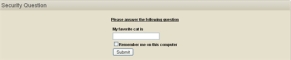
To complete the log-in process, you must provide the answer to one of the security questions that you created. You have the option to remember your answer for the computer that you are currently logged into. Simply click the checkbox next to the Remember me on this computer option provided. User names, passwords, and security questions are provided to ensure that your information is kept confidential. Selecting this option does not pose any issue when access to the computer is limited. It is not something you should do on a public computer, however.
If you are an existing patient with the care provider, the first time that you log into the Patient Portal you will be asked to create your Login Questions before continuing to use the portal, as illustrated in the following screen shot.

- Enter the Questions and Answers as instructed and make any other changes to the log-in or contact information you desire.
- Click the Save Changes button at the bottom of the screen to continue.
- A pop-up window will appear indicating that your changes have been saved, click OK to continue. The next time you log into the Patient Portal, you will be required to answer the security question, as described above.
If you elected to click the Remember me option, the next time you log into the Patient Portal on the same computer you will go directly to the My Home page.